> ## Documentation Index
> Fetch the complete documentation index at: https://docs.trydepth.ai/llms.txt
> Use this file to discover all available pages before exploring further.
# Slack
> Connect Depth AI with your Slack workspace
Depth AI's Slack integration allows you to interact with your codebase directly from Slack. You can ask questions about your code, get explanations, and deploy specialized assistants to specific channels.
## Connecting to Slack
Navigate to the [Slack Integration settings](https://app.trydepth.ai/new-settings/integrations/slack) in your Depth AI dashboard and click the "Connect" button.
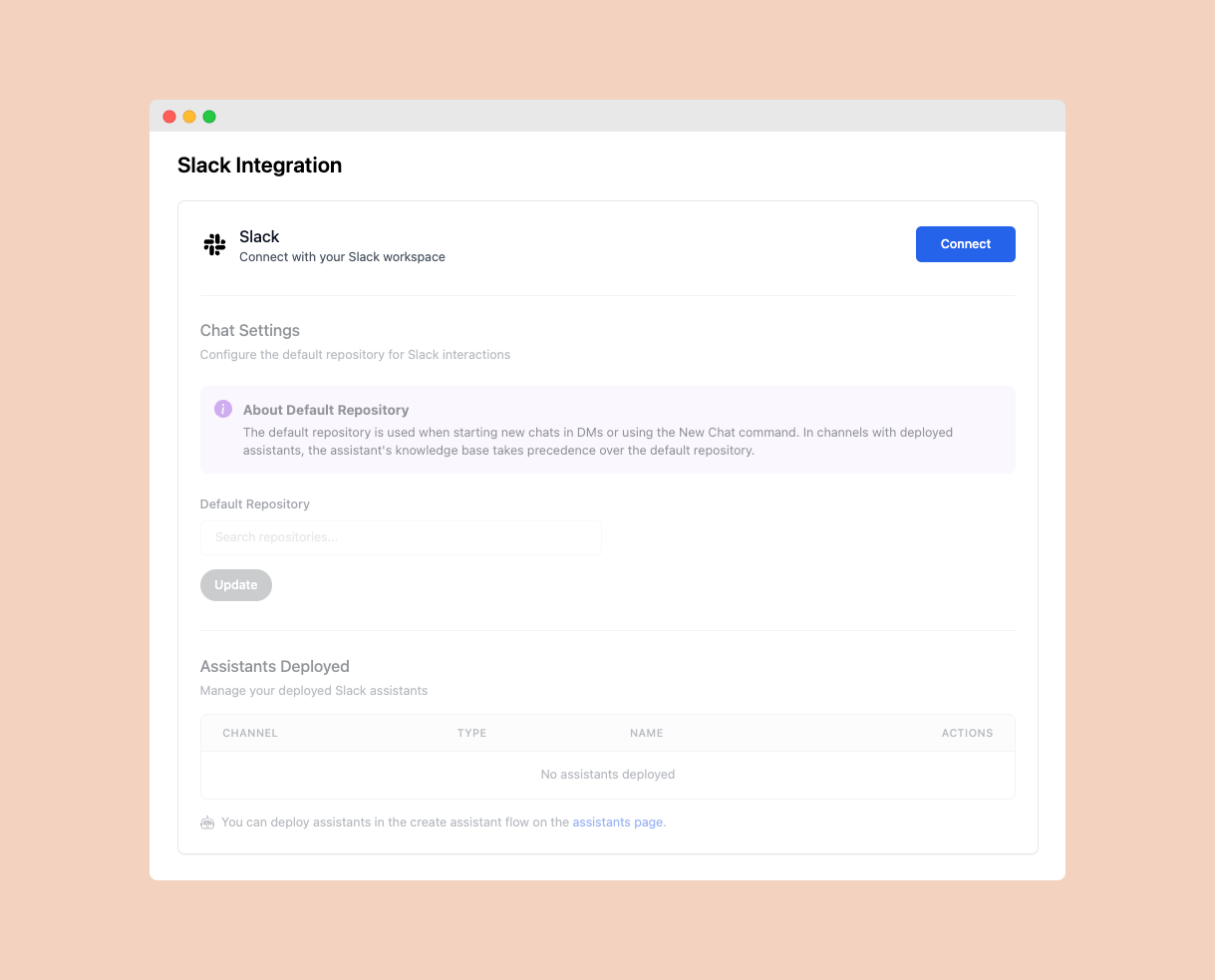 You'll be redirected to Slack where you'll need to review and accept the permissions that Depth AI requires:
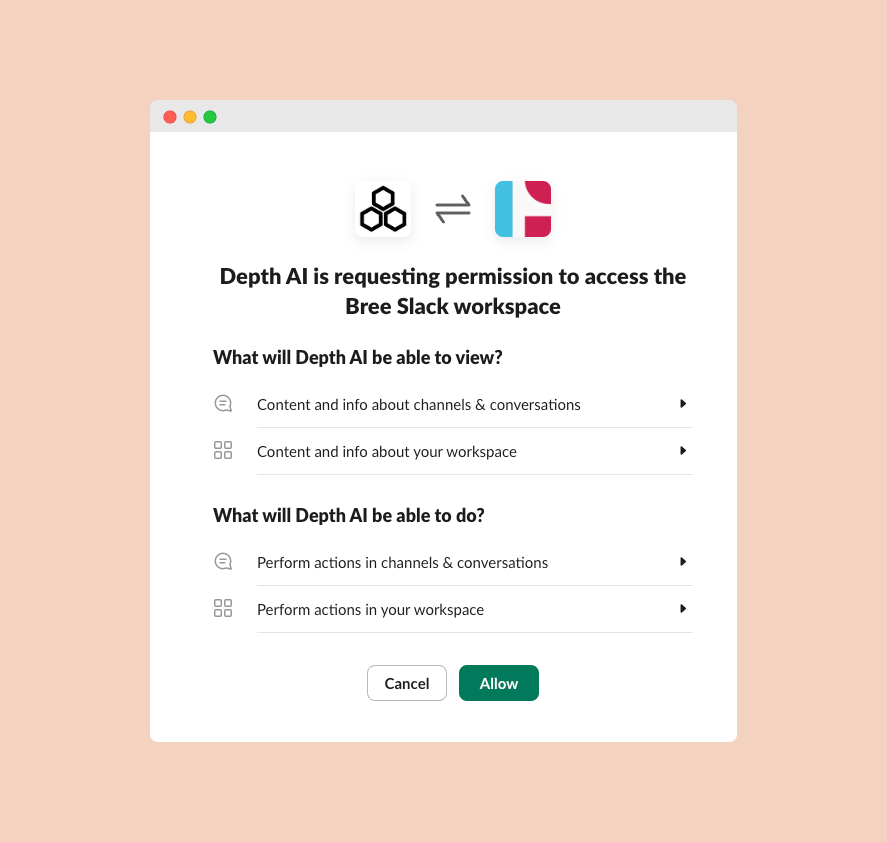 Once authorized, you'll see Depth AI listed in your Slack workspace under Apps --> Add apps.
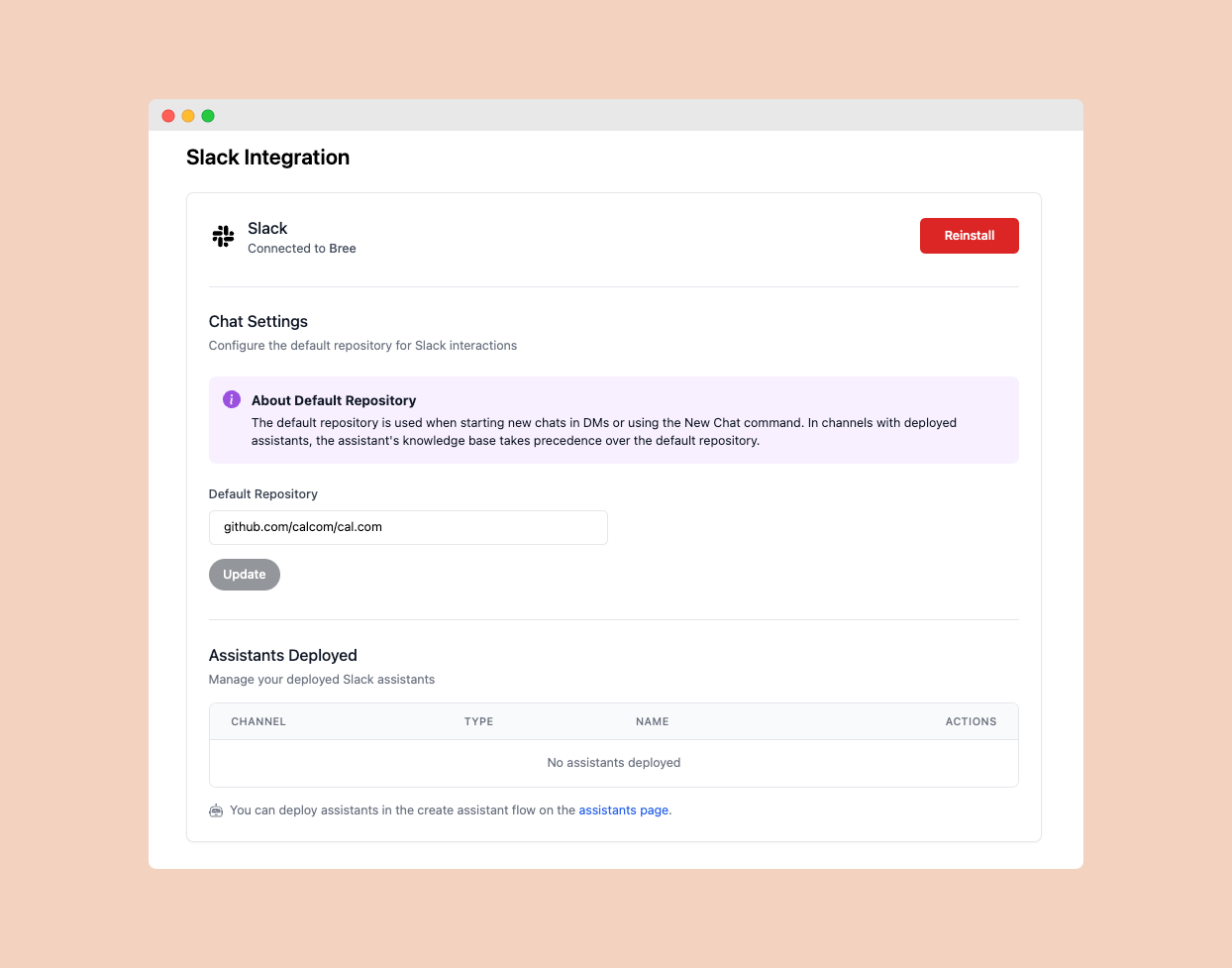
Enter your repository URL in the Default Repository field and click Update to save your changes. This is required before you can use Depth AI in Slack.
Once authorized, you'll see Depth AI listed in your Slack workspace under Apps --> Add apps.
Enter your repository URL in the Default Repository field and click Update to save your changes. This is required before you can use Depth AI in Slack.
 ## Using Depth AI in Slack
There are two main ways to interact with Depth AI in Slack:
Start a fresh conversation by clicking the "New Chat" button.
## Using Depth AI in Slack
There are two main ways to interact with Depth AI in Slack:
Start a fresh conversation by clicking the "New Chat" button.
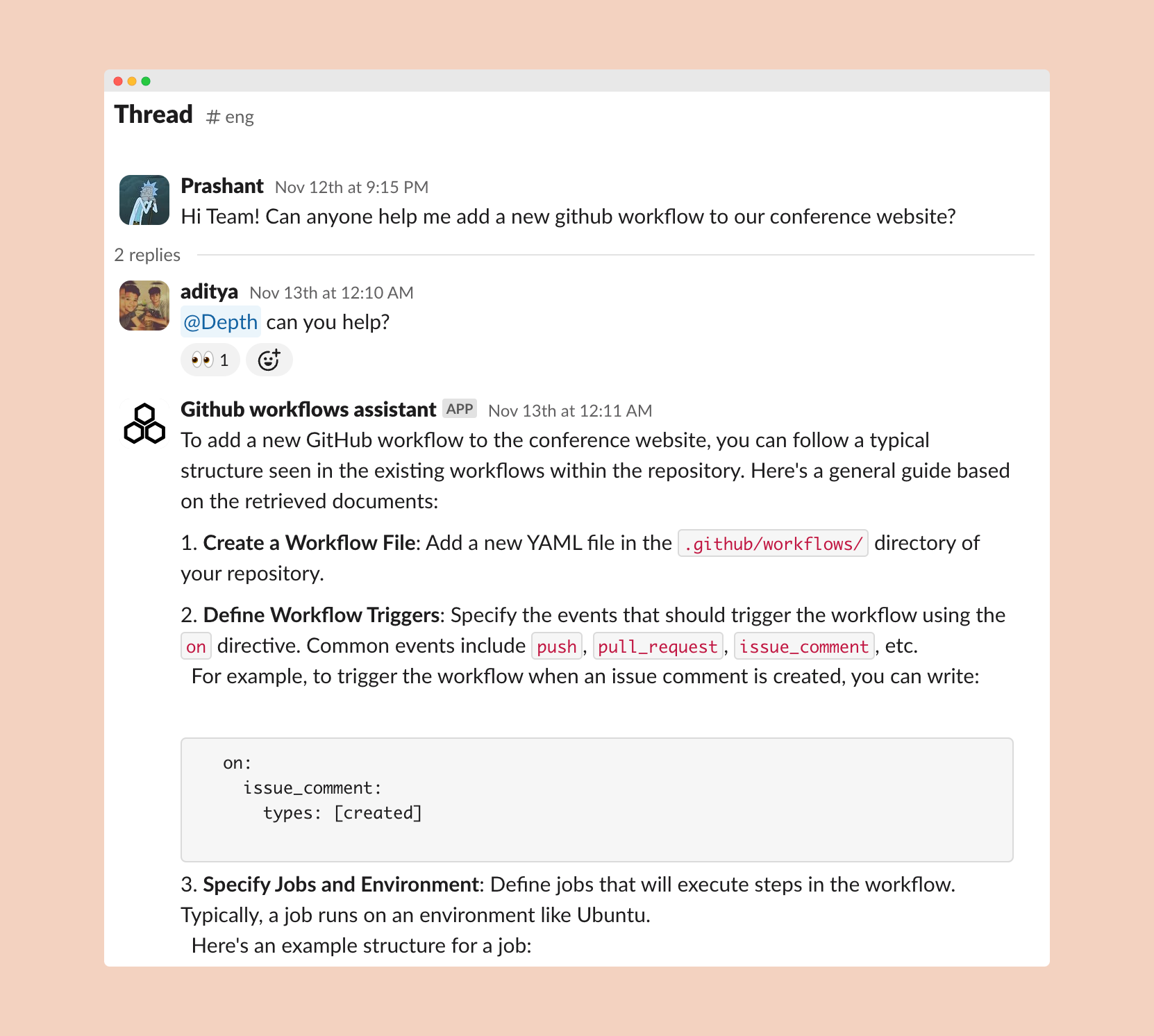
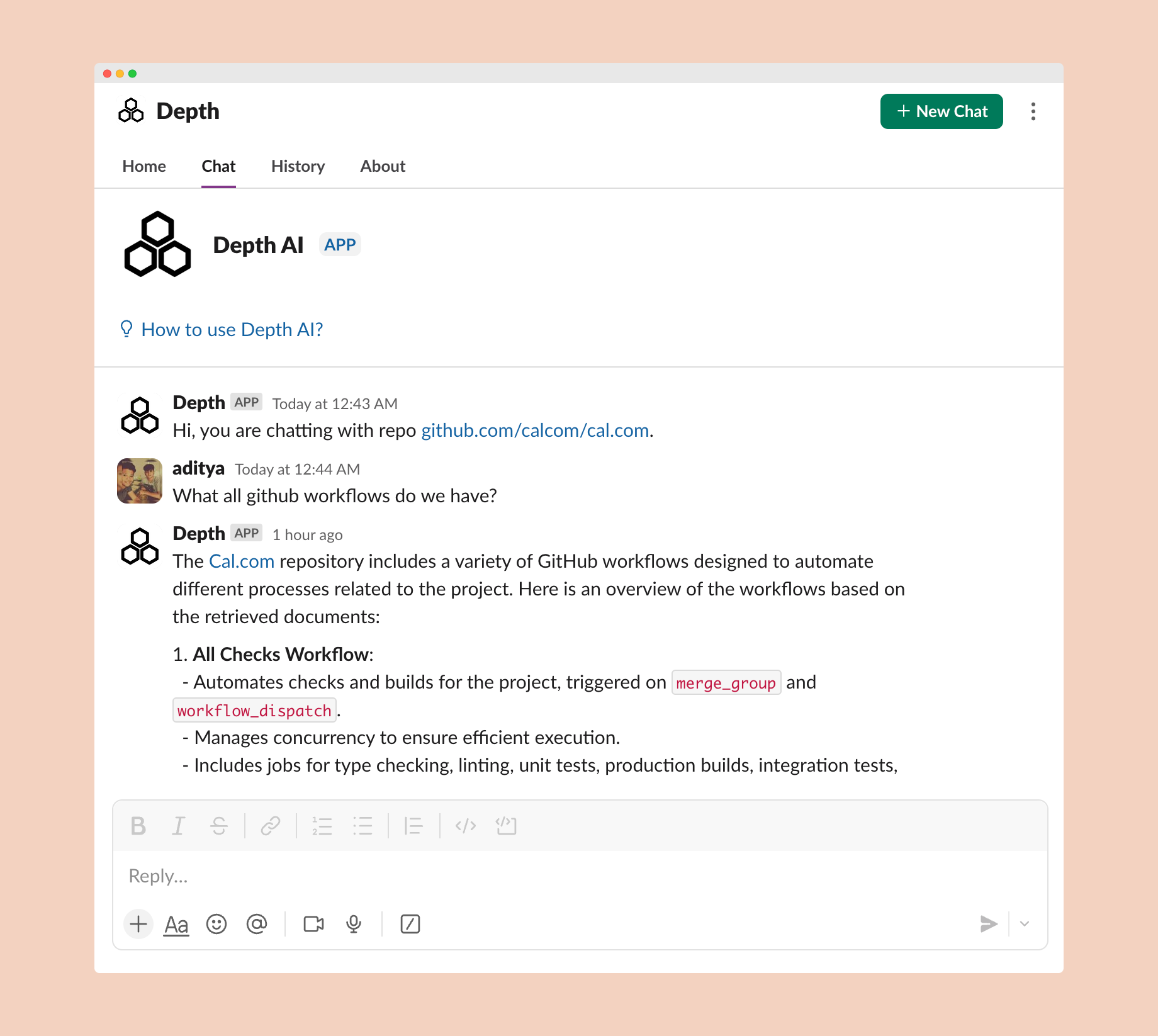 Simply mention `@Depth` in any channel or DM to ask questions about your code.
 ## Deploying Specialized Assistants
You can create specialized assistants trained on specific parts of your codebase and deploy them to different Slack channels.
## Chat context
When you start a new chat or mention Depth AI in direct messages, the assistant will use your default repository as its knowledge source.
In channels where you've deployed specialized assistants, the assistant's knowledge base takes precedence over the default repository context. This allows you to have assistants specialized in different parts of your codebase in different channels.
## Deploying Specialized Assistants
You can create specialized assistants trained on specific parts of your codebase and deploy them to different Slack channels.
## Chat context
When you start a new chat or mention Depth AI in direct messages, the assistant will use your default repository as its knowledge source.
In channels where you've deployed specialized assistants, the assistant's knowledge base takes precedence over the default repository context. This allows you to have assistants specialized in different parts of your codebase in different channels.